
InstaBanana Chrome Extension: Complete Guide to Virtual Try-On on Any Shopping Website
Learn how to use InstaBanana's Chrome extension to try on clothes directly from Amazon, Zara, ASOS, and thousands of other online stores. Step-by-step tutorial with screenshots and video guide.
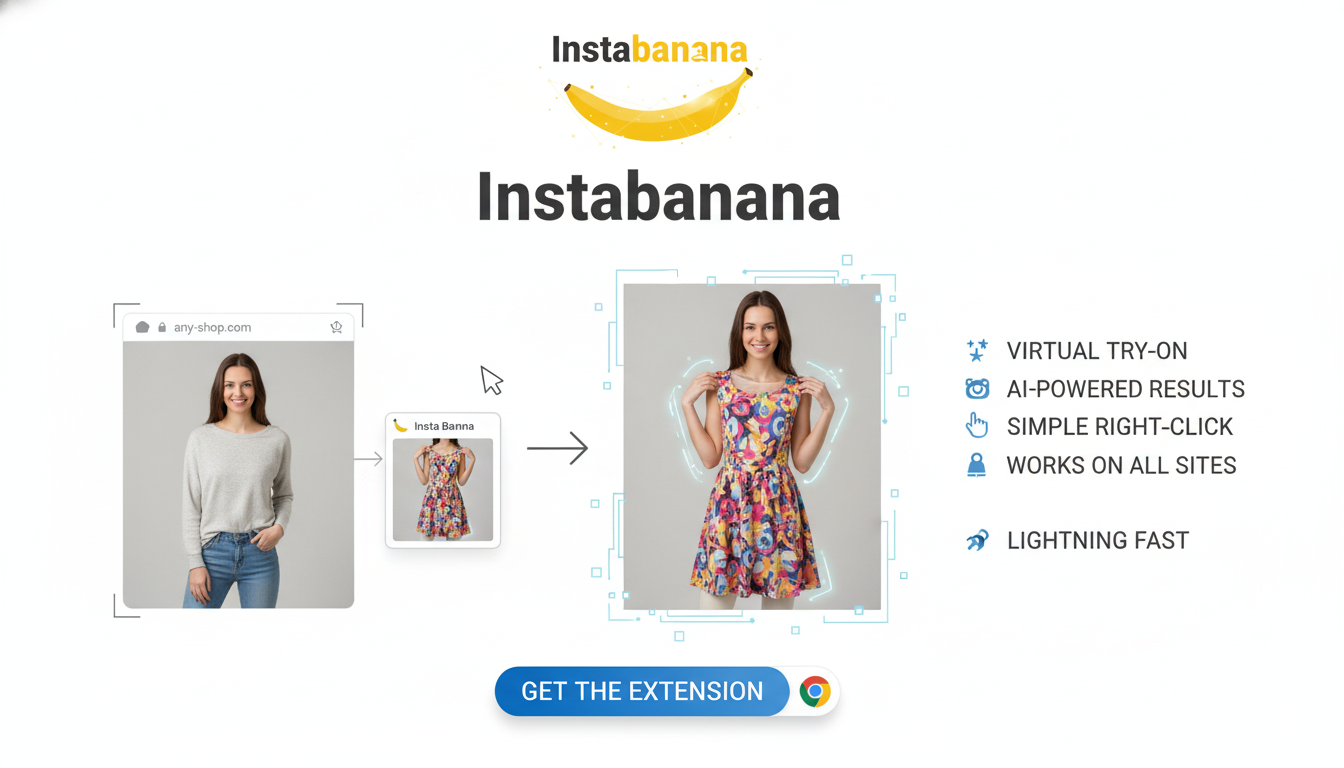
InstaBanana Chrome Extension: Complete Guide to Virtual Try-On on Any Shopping Website
Shopping online has never been easier! With InstaBanana's powerful Chrome extension, you can now try on clothes directly from any shopping website without leaving the page. Whether you're browsing Amazon Fashion, Zara, ASOS, H&M, or thousands of other online stores, our AI-powered virtual try-on extension brings the fitting room experience right to your browser.
In this comprehensive guide, we'll walk you through everything you need to know about installing, setting up, and using the InstaBanana Chrome extension for the ultimate online shopping experience.
What is the InstaBanana Chrome Extension?
The InstaBanana Chrome extension is a browser add-on that integrates seamlessly with your favorite online shopping websites. Instead of manually uploading photos and clothing items to our web platform, the extension allows you to:
- Try on clothes instantly while browsing any shopping website
- No need to leave the page - everything happens in your browser
- Works with thousands of stores including Amazon, Zara, ASOS, and more
- Save your photos for quick access across all shopping sessions
- Get instant results with photorealistic AI-powered virtual try-on
This revolutionary browser extension transforms how you shop online, making it easier than ever to see how clothes will look on you before making a purchase.
Why Use the Chrome Extension Instead of the Web App?
While our web platform is excellent, the Chrome extension offers several unique advantages:
1. Seamless Shopping Experience
No more switching between tabs or copying image URLs. The extension works directly on the shopping page you're browsing.
2. Faster Workflow
Your photos are saved in the extension, so you don't need to upload them every time. Just click and try on!
3. Better Integration
The extension automatically detects clothing items on product pages, making it easier to select what you want to try on.
4. Works Everywhere
Compatible with virtually any online fashion retailer, from major brands to small boutiques.
5. Privacy & Security
All your photos are stored locally in your browser. We never access your personal images without your permission.
Step-by-Step Installation Guide
Follow these simple steps to install the InstaBanana Chrome extension and start trying on clothes from any website.
Step 1: Install from Chrome Web Store
The first step is to add the InstaBanana extension to your Chrome browser. This is a quick and secure process.
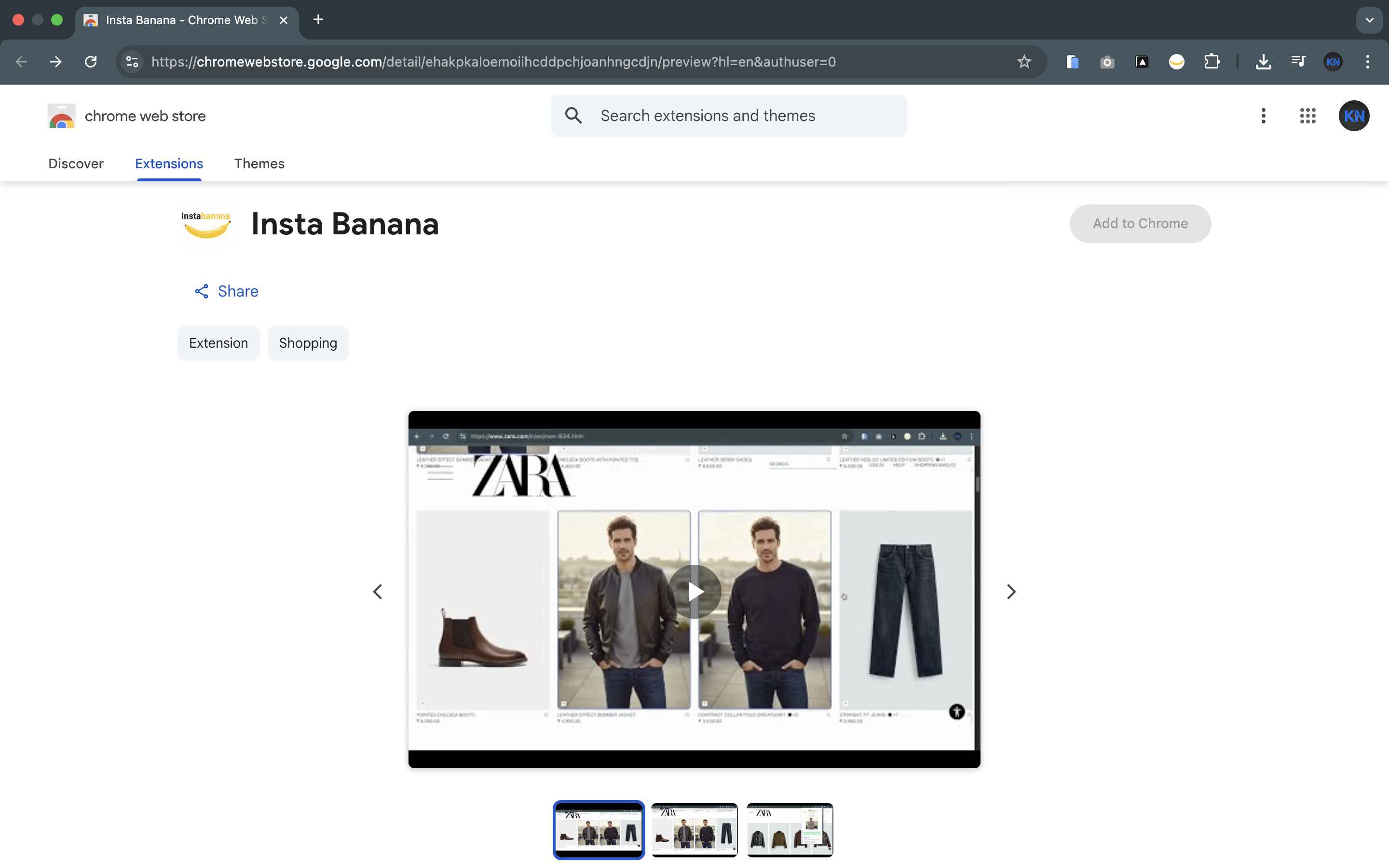 Step 1: Install InstaBanana Chrome Extension from Chrome Web Store
Installation Steps:
- Visit the Chrome Web Store: Click here to install the InstaBanana Chrome extension
- Click "Add to Chrome": You'll see a blue button on the extension page
- Confirm Installation: Chrome will ask for confirmation. Click "Add extension"
- Wait for Installation: The extension will install in just a few seconds
- See the Confirmation: You'll see a notification that InstaBanana has been added to Chrome
What Permissions Does It Need?
The extension requires minimal permissions:
- Access to active tabs: To detect clothing items on shopping pages
- Storage: To save your uploaded photos locally
- No personal data collection: We don't track your browsing or collect personal information
Troubleshooting Installation Issues:
- "Extension not available": Make sure you're using Google Chrome (not other Chromium browsers)
- Installation fails: Check your internet connection and try again
- Can't find the extension: Look for the InstaBanana icon in your Chrome toolbar (top right)
Step 2: Upload Your Photo
Once installed, you'll need to upload a photo of yourself. This photo will be used for all your virtual try-on sessions, so make sure it's a good one!
 Step 2: Upload your photo - InstaBanana Chrome Extension Tutorial
How to Upload Your Photo:
- Click the Extension Icon: Look for the InstaBanana icon in your Chrome toolbar (top right corner)
- Open the Extension: Click the icon to open the extension popup
- Navigate to Upload: Click on "Upload Photo" or "Add Photo" button
- Select Your Photo: Choose a clear, full-body photo from your computer
- Confirm Upload: Wait for the upload to complete (usually just a few seconds)
Best Practices for Your Photo:
- Full Body Shot: Make sure your entire body is visible from head to toe
- Front-Facing: Stand straight, facing the camera directly
- Good Lighting: Use natural light or well-lit indoor spaces
- Neutral Background: A plain background helps the AI work better
- Fitted Clothing: Wear something relatively fitted so the AI can map your body shape accurately
- High Resolution: Use a clear, high-quality photo for best results
Why Photo Quality Matters:
The quality of your uploaded photo directly impacts the accuracy of your virtual try-on results. A clear, well-lit, full-body photo will produce the most realistic and accurate virtual fitting results. Poor quality photos can lead to less accurate try-on results.
Step 3: Preview Your Uploaded Image
After uploading, you'll see a preview of your image. This is your chance to make sure everything looks good before you start shopping.
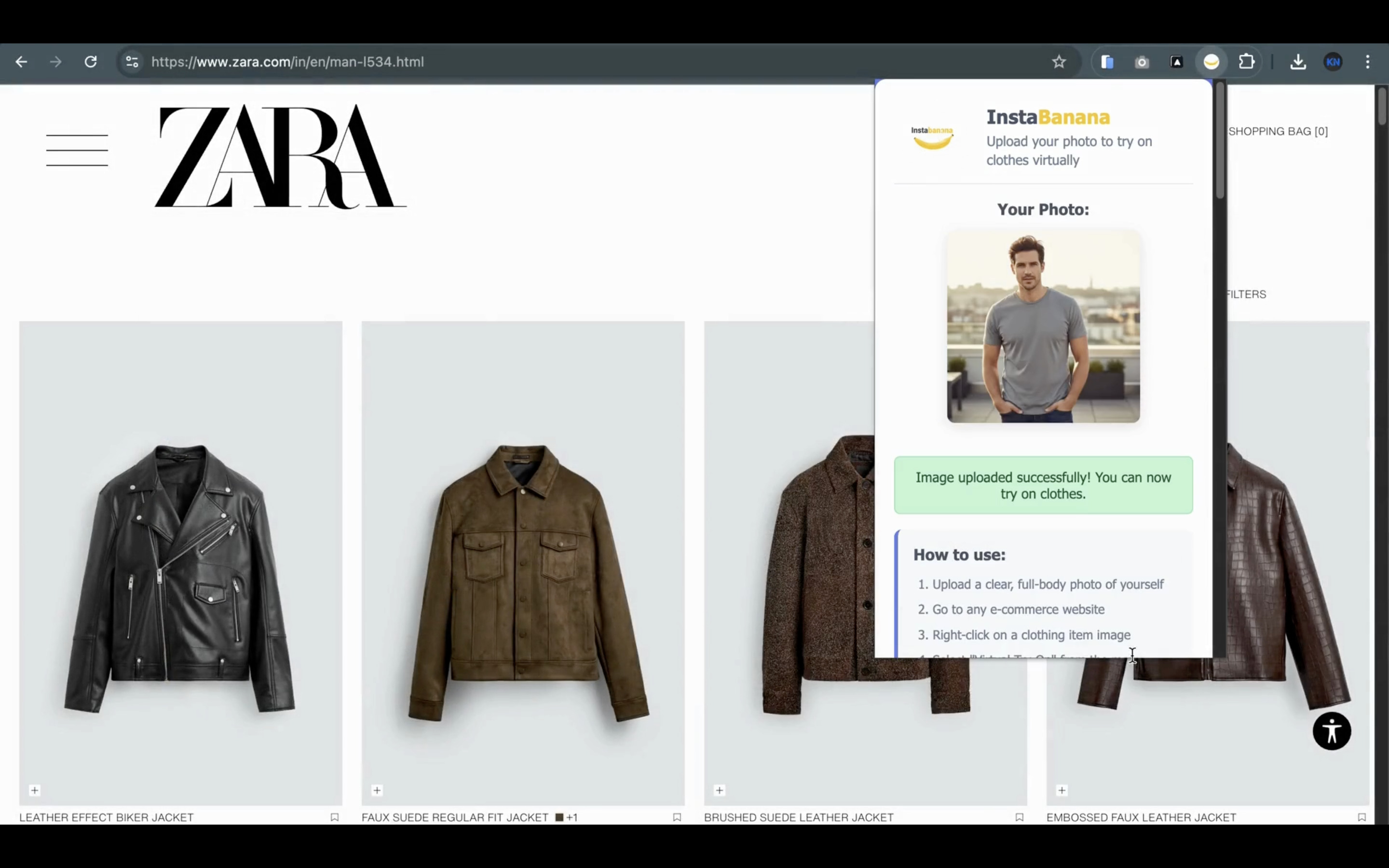 Step 3: Preview your uploaded image - InstaBanana Chrome Extension Tutorial
What to Check:
- ✅ Your entire body is visible in the frame
- ✅ The image is clear and not blurry
- ✅ Lighting is adequate
- ✅ You're positioned correctly (front-facing, standing straight)
If Something Looks Wrong:
- Image too blurry? Upload a higher resolution photo
- Body not fully visible? Use a photo that shows you from head to toe
- Poor lighting? Try a photo taken in better lighting conditions
- Wrong angle? Use a front-facing photo for best results
Pro Tip: You can always update your photo later by clicking the extension icon and selecting "Change Photo" or "Upload New Photo". This is especially useful if you want to try different poses or update your photo for better results.
Step 4: Try On Clothes from Any Website
Now for the fun part! Once your photo is uploaded, you can try on clothes from any shopping website.
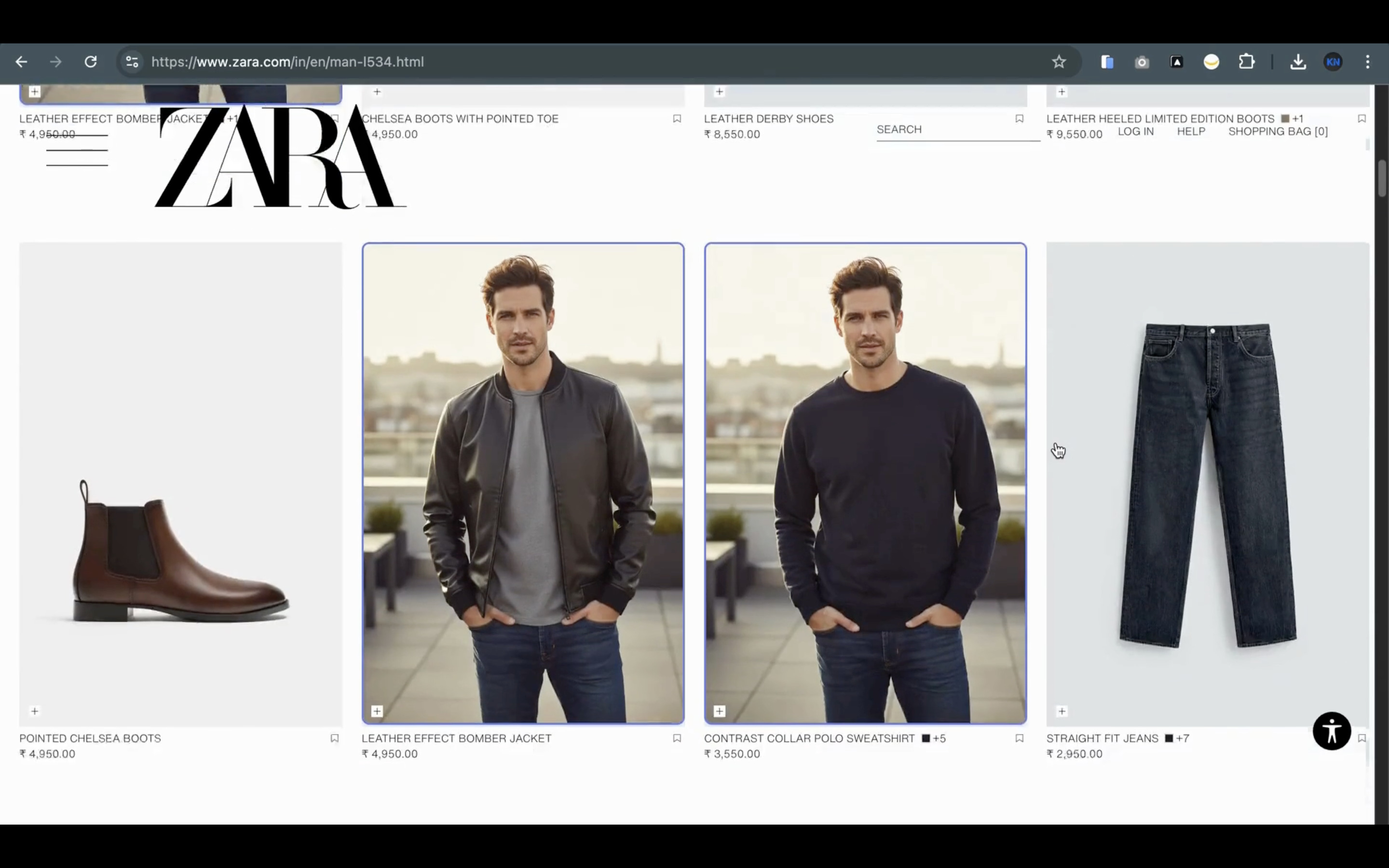 Step 4: Try on clothes from any website - InstaBanana Chrome Extension Tutorial
How to Try On Clothes:
- Visit Any Shopping Website: Go to Amazon, Zara, ASOS, H&M, or any other fashion retailer
- Find a Clothing Item: Browse and find an item you want to try on
- Click the Extension Icon: Click the InstaBanana icon in your Chrome toolbar
- Select the Clothing Item: The extension will detect clothing items on the page, or you can manually select an image
- Click "Try On": Hit the try-on button and wait a few seconds
- See Your Results: View the photorealistic virtual try-on result!
Supported Shopping Websites:
The InstaBanana Chrome extension works with thousands of online stores, including:
- Amazon Fashion: Try on clothes from Amazon's vast clothing selection
- Zara: See how Zara's latest fashion looks on you
- ASOS: Try on ASOS's trendy and affordable fashion
- H&M: Test H&M's stylish and sustainable clothing
- Forever 21: Try on Forever 21's fast fashion items
- Nike, Adidas: Try on athletic wear and sportswear
- And thousands more: Works with virtually any online fashion retailer
Tips for Best Results:
- Clear Product Images: Make sure the clothing item has a clear, high-quality image
- Single Item Focus: Try on one item at a time for best results
- Wait for Processing: Give the AI a few seconds to process your try-on
- Try Different Items: Don't be afraid to try multiple items to find your perfect match
Video Tutorial: See It in Action
Want to see the Chrome extension in action? Watch our comprehensive video tutorial that walks you through the entire process:
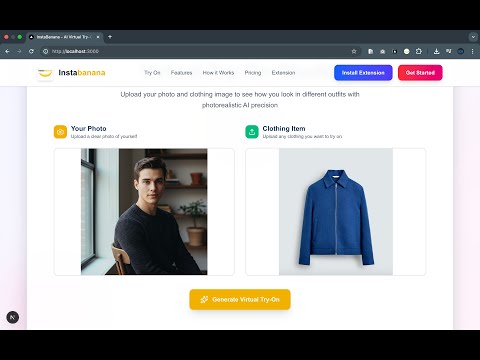
What You'll Learn in the Video:
- How to install the extension step-by-step
- How to upload and optimize your photo
- How to try on clothes from different shopping websites
- Tips and tricks for getting the best results
- Troubleshooting common issues
Advanced Features and Tips
Saving Multiple Photos
You can save multiple photos in the extension for different purposes:
- Different Poses: Save photos in different poses for variety
- Different Outfits: Save photos wearing different base outfits
- Different Lighting: Save photos taken in different lighting conditions
Using on Different Websites
The extension adapts to different website layouts:
- Product Pages: Automatically detects clothing items on product pages
- Category Pages: Works on category and listing pages
- Search Results: Try on items directly from search results
- Wishlists: Try on items from your saved wishlists
Keyboard Shortcuts
Speed up your workflow with these shortcuts:
- Quick Access: Click the extension icon anytime
- Fast Try-On: Use the extension's quick try-on feature
- Photo Management: Easily switch between saved photos
Common Questions About the Chrome Extension
Is the Extension Free?
Yes! The InstaBanana Chrome extension is completely free to install and use. You can try on unlimited items with the extension, though some advanced features may require credits (same as the web platform).
Does It Work on Mobile?
The Chrome extension works on desktop Chrome browsers. For mobile devices, you can use our web platform which is fully optimized for mobile browsers.
Is My Data Safe?
Absolutely! Your photos are stored locally in your browser. We don't collect, store, or share your personal images. All processing happens securely, and we never access your photos without your explicit action.
Can I Use It Offline?
The extension requires an internet connection to process virtual try-ons, as the AI processing happens on our servers. However, your uploaded photos are stored locally, so you can access them offline.
Does It Slow Down My Browser?
No! The extension is lightweight and optimized for performance. It only activates when you click the extension icon, so it won't slow down your browsing experience.
Can I Use It on Multiple Computers?
Yes! You can install the extension on multiple computers. However, your uploaded photos are stored locally on each device, so you'll need to upload your photo on each computer you use.
Troubleshooting Common Issues
Extension Not Appearing
Problem: Can't find the extension icon in Chrome toolbar.
Solutions:
- Check if the extension is installed: Go to
chrome://extensions/ - Pin the extension: Click the puzzle icon in Chrome toolbar and pin InstaBanana
- Refresh the page: Sometimes a page refresh helps
Photo Not Uploading
Problem: Photo upload fails or takes too long.
Solutions:
- Check file size: Use images under 10MB for best results
- Check file format: Use JPG, PNG, or WebP formats
- Check internet connection: Ensure you have a stable connection
- Try a different photo: Some photos may have compatibility issues
Try-On Not Working
Problem: Virtual try-on doesn't work on a specific website.
Solutions:
- Refresh the page: Sometimes a page refresh helps
- Check if the website is supported: Most fashion websites work, but some may have compatibility issues
- Try a different item: Some product images may not be compatible
- Contact support: If issues persist, reach out to our support team
Results Look Off
Problem: Virtual try-on results don't look accurate.
Solutions:
- Upload a better photo: Use a clear, full-body, front-facing photo
- Try a different clothing item: Some items work better than others
- Check product image quality: Make sure the clothing item has a clear image
- Adjust your photo: Try a photo with better lighting or different pose
Benefits of Using the Chrome Extension
1. Convenience
No more switching between tabs or copying URLs. Everything happens right on the shopping page you're browsing.
2. Speed
Your photos are saved, so you can try on multiple items quickly without re-uploading.
3. Integration
Works seamlessly with your favorite shopping websites, detecting clothing items automatically.
4. Privacy
All your photos are stored locally in your browser. We never access them without your permission.
5. Versatility
Works with thousands of online stores, from major retailers to small boutiques.
Comparison: Chrome Extension vs Web Platform
| Feature | Chrome Extension | Web Platform |
|---|---|---|
| Installation | One-time install | No installation needed |
| Photo Storage | Saved locally | Upload each time |
| Workflow | Click and try on | Upload photo + clothing |
| Website Integration | Automatic detection | Manual upload |
| Speed | Faster (saved photos) | Slightly slower |
| Mobile Support | Desktop only | Mobile-friendly |
| Best For | Regular shoppers | Occasional users |
When to Use Each:
- Use Chrome Extension: If you shop online regularly and want the fastest, most convenient experience
- Use Web Platform: If you shop occasionally or prefer not to install browser extensions
Getting Started Today
Ready to transform your online shopping experience? Here's how to get started:
- Install the Extension: Click here to install InstaBanana Chrome Extension
- Upload Your Photo: Follow the step-by-step guide above
- Start Shopping: Visit your favorite online stores and try on clothes instantly!
Conclusion
The InstaBanana Chrome extension revolutionizes online shopping by bringing virtual try-on technology directly to your browser. With just a few clicks, you can see how clothes look on you before buying, reducing returns and making smarter fashion choices.
Whether you're shopping on Amazon, Zara, ASOS, or any other online store, the extension makes it easy to try on clothes virtually and make confident purchasing decisions.
Key Takeaways:
- ✅ Easy to install from Chrome Web Store
- ✅ Works with thousands of online stores
- ✅ Saves your photos for quick access
- ✅ No need to leave the shopping page
- ✅ Privacy-focused (photos stored locally)
- ✅ Free to use with unlimited try-ons
Ready to start? Install the InstaBanana Chrome Extension now and experience the future of online shopping!
Related Resources
- How to Use InstaBanana Virtual Try-On: Complete Step-by-Step Guide
- Virtual Try-On Benefits: Why It's Changing Online Shopping
- Best Practices for Online Fashion Shopping
Keywords for SEO: chrome extension, virtual try-on extension, browser extension, online shopping, Amazon virtual try-on, Zara virtual try-on, fashion tech, AI fashion, shopping assistant, virtual fitting extension, Chrome extension for shopping, virtual try-on browser extension, AI fashion extension, online shopping extension, fashion technology
Ready to Transform Your Shopping?
Try on thousands of outfits instantly with AI-powered virtual fitting. See how you look before you buy.
Start Virtual Try-On